Home Office Setup Basics
A first home office usually fails for predictable reasons: poor audio during calls, unstable Wi‑Fi, uncomfortable posture, and a desk that forces cable chaos. Gadgets solve those problems when they match your work pattern, not when they match a shopping list.
Start with the core workflow. If you attend video meetings, audio quality matters more than screen size. If you write and edit documents, keyboard feel and monitor height matter more than a second camera. If you handle large files, storage and network stability matter more than extra RGB lighting.
For a concrete example, a typical setup for a laptop-only worker includes a monitor, a headset, and a reliable way to connect power and peripherals. Many people also add a small desk lamp and a cable organizer, then discover the lamp glare on the monitor and move it again. That kind of iteration is normal, and it’s cheaper than buying a new laptop.
Problems And Pain Points
People often buy gadgets that look useful but miss the dependency that makes them work. A microphone upgrade fails when the room has echo, a headset sounds bad when the laptop’s audio processing is set wrong, and a “fast” Wi‑Fi plan still drops calls when the router sits behind a wall.
Audio problems usually come from three sources: the mic picks up room reflections, the headset uses the wrong connection type, or the conferencing app applies noise suppression that clashes with your voice. Video issues often trace back to lighting direction and camera placement rather than camera resolution. Ergonomics issues show up as wrist strain from a low keyboard shelf or neck fatigue from a monitor that sits too low.
Connectivity pain points depend on your network hardware and local layout. Wi‑Fi performance depends on signal strength, channel congestion, and interference from nearby networks. Ethernet avoids most of that, but it requires a cable run or a powerline adapter that may behave inconsistently between homes. I noticed this firsthand during a setup on 2024‑11‑03: the same laptop showed stable calls on Ethernet but intermittent audio on Wi‑Fi, even though the Wi‑Fi speed test looked fine.
Power and charging also cause silent failures. A single USB‑C port may not support both video output and charging at the same time, depending on the laptop and dock. Some docks advertise “100W charging,” but the laptop may still throttle under load if the dock’s power delivery profile is mismatched.
Solutions And Advice
Choose A Call-Ready Headset
For meetings, prioritize a headset with a stable connection and a mic designed for voice pickup. Wired USB headsets often avoid Bluetooth latency and pairing quirks. If you use Bluetooth, test it with your conferencing app before committing, because some laptops switch audio profiles mid-call.
Set the input device inside the app and inside the OS. On Windows, check Sound Settings and confirm the headset is the selected input and output. On macOS, verify the input in System Settings and in the meeting app’s audio menu. Noise suppression helps, but it can sound “watery” when the mic gain is too high, so start with moderate levels and adjust while speaking at your normal volume.
Realistic outcome: a well-chosen headset usually reduces background noise pickup and improves intelligibility enough that others stop asking you to repeat yourself. If your room has hard surfaces, add a soft element like a curtain or a bookcase rather than chasing a more expensive mic.
Pick A Monitor And Mount
A second monitor improves workflow when it matches your tasks, but a single good monitor often beats two mismatched ones. Look for a comfortable height range and a stand that keeps the top of the screen near eye level. If your desk is low, a monitor arm can raise the display and free desk space for a keyboard tray.
For laptop users, a monitor also reduces eye strain by letting you increase font size without shrinking the usable area. If you connect via USB‑C, confirm the monitor supports video over USB‑C and power delivery if you want one-cable charging. Some monitors accept USB‑C for video but not for charging, which forces a second power cable.
Realistic outcome: after adjusting monitor height and keyboard position, many people report fewer neck-forward postures during long sessions. The measurable part is simpler: you can keep your shoulders relaxed and your elbows near 90 degrees for longer without compensating.
Stabilize Wi-Fi Or Use Ethernet
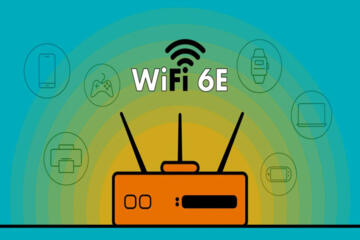
For video calls, aim for stable packet delivery rather than just high download speed. If your router supports it, enable a 5 GHz or 6 GHz band for short-range calls, and place the router where your desk has line-of-sight when possible. If you cannot move the router, consider Ethernet to the desk using a cable run or a managed solution.
Powerline adapters can work, but performance depends on wiring quality and household electrical noise. If you test powerline, do it with a real call or at least a sustained upload test, because conferencing is sensitive to jitter. I once saw a setup where a powerline adapter passed a speed test yet caused audio dropouts every 10–15 minutes, which pointed to jitter rather than bandwidth.
Realistic outcome: a stable wired connection typically reduces call drops and improves audio consistency. If you must stay on Wi‑Fi, reduce interference by changing router channel settings and keeping the router away from microwaves and thick metal shelving.
Manage Cables And Power
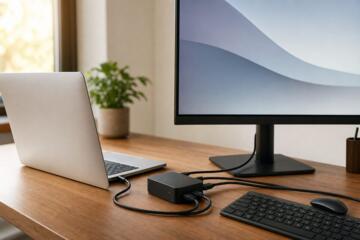
A tidy cable plan prevents accidental disconnects during calls. Use a surge-protected power strip with enough outlets for the monitor, charger, and any desk lamp. If you use a dock, keep it on a stable surface so the USB‑C plug does not get stressed when you move the laptop.
For charging, verify wattage and profiles. A dock that claims 100W charging may still deliver less when multiple peripherals draw power. Check the laptop’s charging requirements and the dock’s supported power delivery modes. If you see the laptop charging slowly, the dock may be negotiating a lower profile.
Realistic outcome: cable management reduces “mystery” failures like a monitor that goes black when you bump the desk. You also gain faster troubleshooting because you can isolate which cable or port causes the issue.
Case Examples
Small Apartment Video Calls
An anonymized tenant worked from a one-bedroom apartment with a desk near a window. They started with a laptop webcam and a cheap Bluetooth headset, then noticed echo and low voice clarity. The fix involved switching to a USB headset, turning on the meeting app’s noise suppression at a moderate level, and adding a curtain to reduce reflections. They also moved the router closer to the desk and used the 5 GHz band for calls. After the changes, call audio became consistent enough that colleagues stopped asking for repeats.
Student With Dual Monitors
An anonymized student used a laptop for coursework and needed to read PDFs while writing notes. They bought a second monitor but placed it too low, which caused neck strain after long study sessions. The student added a monitor arm, adjusted the monitor height, and set keyboard and mouse positions so elbows stayed near 90 degrees. They also used a dock that supported video over USB‑C and checked that the dock delivered charging while the monitor was connected. The student’s workflow improved because they could keep document and notes visible without constantly switching windows.
Comparison Checklist
| Gadget | What To Verify | Common Failure Mode | Decision Signal |
|---|---|---|---|
| Headset | Connection type (USB vs Bluetooth), mic monitoring, OS input selection | Wrong audio profile or echo from room surfaces | Others understand you on the first try at normal volume |
| Monitor | Height adjustability, USB‑C video support, text clarity at your font size | Monitor sits too low; USB‑C charges not supported | You can keep eye level comfortable for 60–90 minutes |
| Network | Jitter stability, band selection, router placement | Speed test looks fine while calls stutter | Meetings stay stable without audio dropouts |
| Dock/Power | Power delivery wattage, video over USB‑C, port stability | Charging slows under load; monitor flickers when bumped | One-cable setup stays consistent across restarts |
Step-by-step checklist for a first purchase cycle: pick one gadget that fixes your biggest pain point, test it for a week with your real meetings or study sessions, then buy the next item only after you can describe the remaining failure mode in plain terms. This avoids the common pattern of buying three devices at once and not knowing which one caused the improvement.
Common Mistakes To Avoid
Buying a “gaming” headset for calls often backfires because mic pickup and noise suppression settings aim at a different use case. A headset that sounds good for music can still pick up room echo and compress speech in a way that makes consonants harder to hear.
Relying on Wi‑Fi speed tests alone misses jitter and packet loss. A 200 Mbps download rate does not prevent audio stutters when upload jitter spikes during congestion. If you see call issues, test with a real call and check router placement, band selection, and interference sources.
Skipping ergonomics adjustments creates slow injuries. A monitor that sits too low forces neck flexion, and a keyboard that sits too high forces shoulder elevation. The fix is often mechanical: raise the monitor, lower the keyboard, and set chair height so feet rest flat.
Overloading a dock causes intermittent behavior. When multiple peripherals draw power, the dock may negotiate lower charging wattage or drop video briefly. If you notice flicker, disconnect one peripheral at a time and test after a restart, because some docks behave differently after sleep.
FAQ
What Headset Mic Settings Help?
Use the meeting app’s audio test, set the input to your headset, and keep mic gain moderate. Too much gain increases background noise and makes noise suppression sound unnatural.
Do I Need A Second Monitor?
A second monitor helps when your tasks split across reading and writing or when you manage multiple windows. A single well-positioned monitor often improves comfort more than adding a second screen that sits too low.
USB-C Docks Always Charge Laptops?
Not always. Some docks support video over USB‑C but do not deliver charging, and some deliver less wattage than the laptop needs under load. Check the dock’s power delivery specs against your laptop model.
Is Powerline Ethernet Reliable?
It can work, but reliability varies by home wiring and electrical noise. Test with a real call or sustained upload, because speed tests may not reflect jitter that affects conferencing.
How Do I Reduce Call Echo?
Reduce reflections with soft furnishings and adjust mic placement. Echo often comes from hard walls and the mic picking up speaker audio, so keep the headset on and avoid using a speakerphone.
Author's Insight
A first home office improves fastest when gadgets target the failure points you can observe: speech clarity, call stability, and posture. Headsets and monitor height address audio and ergonomics directly, while network choices address jitter and packet loss that speed tests do not reveal. Cable and power planning prevents intermittent disconnects that waste meeting time. If you track one week of issues, you can map each symptom to a specific dependency, then buy only the next gadget that fixes that dependency.
Key Takeaways
- Pick gadgets by the problem you can describe: echo, dropped calls, neck strain, or charging instability.
- Verify dependencies: headset input selection, monitor USB‑C video and charging support, and network jitter stability.
- Test with your real workflow for a week before adding more devices.
- Use ergonomics adjustments and cable/power organization to prevent slow injuries and intermittent failures.