First-Time PC Buyer Guide
A first PC purchase usually fails for one of three reasons: the buyer underestimates software needs, overpays for parts they never use, or buys hardware that cannot run the monitor, ports, or games they planned. A practical way to shop is to start from tasks, then map tasks to measurable specs like CPU cores, RAM size, SSD type, and GPU memory. Windows 11 also has a published minimum hardware baseline, including a supported 64-bit processor and TPM 2.0; if you buy a very old system, you may hit install blockers. For storage, many modern PCs feel “snappy” mainly because of SSDs, and a common baseline for a new build is at least 500 GB SSD capacity so you do not run out after updates and apps.
Pick tasks first.
Main Problems And Pain Points
People often get the wrong PC because they treat “specs” as a single number instead of a set of tradeoffs. A CPU that looks strong on paper can still feel slow if the system uses a small, slow SSD or if RAM is limited and the OS swaps to disk. RAM pressure matters because when physical memory fills, the system uses the page file on storage; SSDs reduce the pain, but the experience still degrades compared with having enough RAM. GPU choices also get misread: a GPU with high marketing names can underperform if it has low VRAM for the resolution and texture settings you use.
Underbuying RAM backfires.
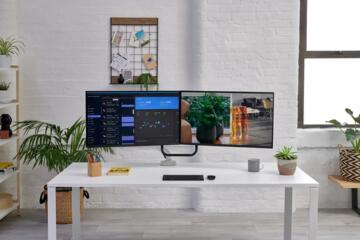
Another common mistake is buying for a future game or app and ignoring the rest of the workload. Browser-heavy tasks can consume RAM quickly, and some creative apps cache large previews in memory. If you plan to edit 4K video, the bottleneck shifts: you need sustained storage throughput, enough RAM for timelines and previews, and a GPU that supports the codecs and effects you use. If you plan to run multiple monitors, you also need to check whether the GPU and the ports support the refresh rate you want; some systems can display the image but not at the refresh rate you expect.
Tips And Recommendations
Match Specs To Your Tasks
Start with your top 3 activities and write down the software names and typical file sizes. Then map each activity to the limiting component: web and office work often bottleneck on RAM and storage responsiveness, while photo editing bottlenecks on RAM and GPU acceleration features, and video editing bottlenecks on both storage throughput and CPU/GPU for encoding. A practical baseline for many first-time buyers is 16 GB RAM and a 500 GB SSD, because it covers common multitasking without immediately forcing upgrades. If you only do basic browsing and documents, 8 GB can work, but you will feel the limits when you add more tabs and background apps.
Pick a baseline, then adjust.
For CPU, prioritize modern multi-core designs over older high-clock chips; software performance depends on how well apps parallelize tasks. For GPU, decide based on your target resolution and game settings rather than the GPU name alone. If you do not play games, you can often spend less on the GPU and more on RAM and storage. If you do play games, check the GPU’s VRAM size because texture-heavy settings at 1440p can exceed smaller VRAM pools.
VRAM affects texture settings.
Choose The Right RAM Amount
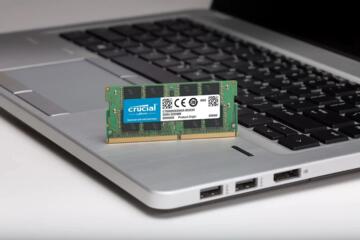
Use RAM as your “buffer” for multitasking and caching. For most first-time Windows setups, 16 GB is a common comfort zone because it reduces page-file usage when you keep a browser, a document editor, and a media app open. If you run creative tools, large spreadsheets, or many browser tabs, 32 GB can reduce slowdowns during previews and exports. If you buy a system with 8 GB, plan for an upgrade path, because some prebuilt systems ship with soldered RAM that cannot be expanded.
Upgrade paths matter.
In practice, you can estimate RAM pressure by watching Task Manager during your typical workload. If memory usage stays near the top and disk activity spikes, you are hitting memory limits. That pattern often shows up when you open large PDFs, run virtual machines, or keep multiple editing windows. A mild frustration here is that many buyers only check performance after purchase, when the upgrade is harder.
Check Task Manager early.
Use SSD Storage With Headroom
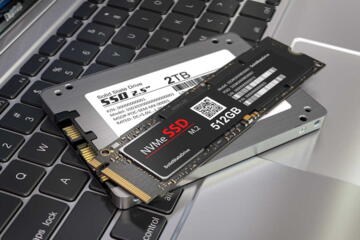
Pick an SSD with enough capacity for your next 6–12 months, not just the OS install. A 500 GB SSD can fill quickly once you add updates, office apps, and a few games; a 1 TB SSD often reduces the need to manage storage. If the system uses a SATA SSD, it can still feel fast for general use, but NVMe SSDs usually deliver higher throughput and faster app loading. You can also check whether the system has an extra M.2 slot for future expansion, because some prebuilt PCs ship with one slot occupied and one slot available.
Capacity beats tiny speed gains.
In practice, storage planning looks like this: keep at least 15–20% free space on the SSD for smoother performance, especially when the drive is near full. If you install large games, you may need to move them to a second drive or add a larger SSD. If you plan to store photos and videos locally, consider a separate internal drive or external storage so your OS drive does not become cramped. That separation reduces the chance that OS updates stall due to low free space.
Free space prevents slowdowns.
Case Examples
Student With Many Tabs
A student buys a PC for browser-based classes, a note-taking app, and occasional photo edits. They choose 16 GB RAM and a 1 TB NVMe SSD because their browser keeps many tabs open and their course materials include large PDFs. After setup, they notice smooth switching between apps and no disk thrashing during video calls. The student still needs to manage storage because course downloads and media files grow, but the system does not slow down immediately when the SSD fills.
RAM headroom reduces stutter.
Light Gaming At 1080p
A buyer wants 1080p gaming plus general office work and streaming. They select a midrange discrete GPU with enough VRAM for common texture settings and pair it with 16 GB RAM and a 500 GB SSD. During the first week, they install a couple of games and observe that load times feel acceptable, while frame rates depend on in-game settings rather than the GPU name. They also confirm that the monitor uses HDMI or DisplayPort correctly so the refresh rate matches what the monitor supports.
Settings control the experience.
Comparison Table
| Buyer Goal | CPU And RAM | Storage | GPU And Display |
|---|---|---|---|
| School + Browsing | 4–8 cores, 16 GB RAM | 500 GB SSD minimum | Integrated graphics ok |
| Photo Editing | 6–8 cores, 16–32 GB RAM | NVMe preferred, 1 TB if local media | GPU acceleration supported by app |
| 1080p Gaming | 6+ cores, 16 GB RAM | 500 GB SSD, add drive if needed | Discrete GPU, match ports |
| Video Editing | More cores, 32 GB RAM if timelines grow | Fast NVMe for cache, extra space for media | GPU for encoding features |
Checklist: verify these before checkout.
- Confirm Windows 11 support if you plan to install it.
- Pick RAM target: 16 GB for most buyers, 32 GB for heavy creative work.
- Pick SSD capacity: 500 GB minimum, 1 TB for games or local media.
- Confirm GPU ports match your monitor refresh rate.
- Check upgrade paths: RAM slots, M.2 slots, and PSU headroom.
- Plan for peripherals: Wi‑Fi adapter quality and required cables.
Skip the timer apps. They add one more thing to manage.
Common Mistakes
One mistake is buying a “gaming” PC without checking the monitor and cables. A system can output a signal, yet the monitor may run at a lower refresh rate due to cable type or port limitations. Another mistake is ignoring RAM upgrade constraints; some laptops ship with soldered RAM, so you cannot fix memory pressure later. A third mistake is choosing a tiny SSD because the OS boots quickly, then discovering that updates and app installs force constant cleanup.
Small SSDs create constant chores.
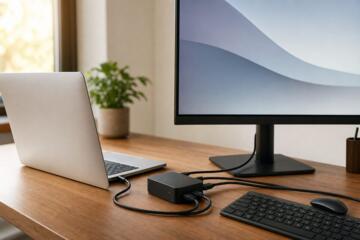
Buyers also over-trust benchmark charts and under-check real software behavior. A benchmark might show a CPU advantage, but your apps may use different instruction sets or rely on GPU acceleration in ways the benchmark does not reflect. Another trap is assuming that integrated graphics can handle every display setup; integrated GPUs can drive multiple monitors, but refresh rates and resolutions depend on the specific GPU and port configuration. If you plan to use a docking station, confirm its supported refresh rate, because docks can cap performance even when the PC supports more.
Docks can quietly limit output.
FAQ
What RAM size should I buy?
For most first-time Windows PCs, 16 GB RAM reduces stutter when you run multiple apps and many browser tabs. Choose 32 GB if you edit large photos or video, run heavy spreadsheets, or keep many projects open at once.
How much SSD storage do I need?
Start with 500 GB SSD for basic use, and plan for 1 TB if you install multiple games or store local media. Keep 15–20% free space to reduce slowdowns when the drive is near full.
Do I need a dedicated GPU?
You need a dedicated GPU mainly for gaming at your target resolution or for creative apps that use GPU acceleration. If your tasks are office work and web apps, integrated graphics can be enough, but confirm it can drive your monitor setup.
Will Windows 11 run on my PC?
Windows 11 requires supported CPU hardware and TPM 2.0 for supported installs. Check the official Microsoft requirements and verify the specific CPU generation and TPM status before buying.
How do I avoid buying the wrong ports?
Match your monitor’s resolution and refresh rate to the PC’s available ports, then confirm the cable type. DisplayPort often supports higher refresh rates more reliably than older HDMI setups, and USB‑C video support depends on Alt Mode support.
Author's Insight
I do not have personal clinical experience, and this guide focuses on hardware decision logic rather than health topics. The most reliable pattern in first-time PC buying is to treat performance as a chain: CPU and RAM handle app responsiveness, SSD capacity and speed handle loading and updates, and GPU plus ports determine display smoothness. When buyers plan from tasks and verify compatibility details, they avoid the most common “it works but feels bad” outcomes. If you want a practical next step, list your exact apps and your monitor model, then compare against the spec targets in the checklist.
Plan from tasks, not hype.
Key Takeaways
Choose a PC by mapping your tasks to measurable specs: 16 GB RAM for most buyers, SSD capacity that fits your next 6–12 months, and a GPU that matches your resolution and refresh rate goals. Verify OS support for Windows 11 and confirm port compatibility with your monitor, because those issues create the most frustrating setup delays. Keep upgrade paths in view so you can fix mistakes later, especially for RAM and storage. If you feel stuck, compare two candidate systems using the checklist and check return terms before you install large apps.
Seek professional advice for medical needs.
This article does not replace medical guidance. If your health situation involves computer use for therapy, accessibility needs, or symptom triggers like eye strain, consult a qualified clinician or occupational therapist for personalized recommendations.