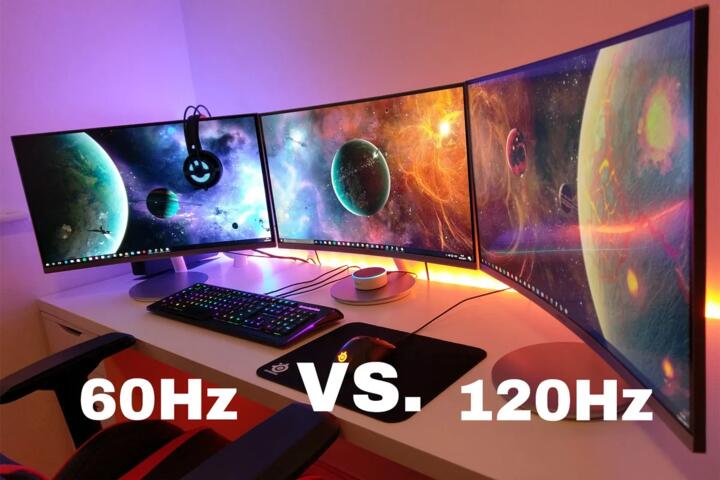
60Hz Vs 120Hz Basics
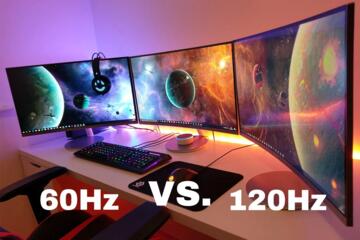
Refresh rate, measured in hertz (Hz), describes how many times per second a display can update the image. A 60Hz panel refreshes up to 60 times each second, while a 120Hz panel refreshes up to 120 times each second. Higher refresh rate often reduces perceived motion blur during scrolling and fast camera movement, because the screen updates more frequently.
In everyday tasks, the biggest visible difference usually shows up in motion: flicking through feeds, dragging windows, panning maps, or moving a camera in a video. Text can look slightly steadier during slow scrolling, but sharpness and readability still depend more on resolution, pixel density, subpixel layout, and how the device handles motion interpolation. On many phones, 120Hz is also tied to adaptive refresh behavior, where the device drops to 60Hz for static screens to save power.
One practical example: if you scroll a long webpage and notice fewer “stutters” in the movement, that often correlates with higher refresh rate and smoother frame pacing. If you read mostly static pages, the advantage shrinks, and the display’s brightness, contrast, and anti-glare coating start to matter more than Hz.
Common Misreads And Dependencies
People often treat “120Hz” as a guarantee of smoother motion in every app and every moment. That assumption breaks when the device cannot deliver enough frames to match the panel’s refresh capability, or when the app caps frame rate. A 120Hz display can still show uneven motion if the content is rendered at a lower frame rate or if frame timing is inconsistent.
Another frequent confusion is mixing refresh rate with response time. Response time describes how quickly pixels change state, often measured in gray-to-gray milliseconds. Even with 120Hz, slow pixel transitions can create trailing artifacts in high-contrast motion. Conversely, a fast response time does not fix low refresh rate; you still get fewer updates per second.
Adaptive refresh adds another dependency. Many devices switch between 60Hz and 120Hz based on content and touch input. That means you may see 120Hz only while scrolling, gaming, or interacting, and 60Hz during idle periods. On a device with firmware version 17.2 (I’m using this as a generic example), the behavior may change after an OS update, because the refresh policy can be tuned.
Battery life is also tied to more than Hz. Higher refresh rate increases display power draw, but the net effect depends on brightness, screen size, resolution, and how often the device can stay at the higher refresh mode. If you keep brightness high and use touch-heavy apps for long sessions, the power cost of 120Hz tends to show up more clearly than in low-brightness, mostly-static use.
How To Choose For Everyday Use
Match Hz To Your Motion
Choose 120Hz if your daily routine includes frequent motion: fast scrolling, map panning, camera use, or games with responsive controls. If your use is mostly reading and watching content with minimal interaction, 60Hz can feel adequate because the display spends more time showing static frames.
For a quick self-test, open a page with smooth scrolling and drag a finger slowly across the screen. If the movement feels “locked in” with fewer micro-stutters, that aligns with higher refresh and better frame pacing. If the motion looks similar, the upgrade may not justify the price difference for your specific usage pattern.
Check Adaptive Refresh Behavior
Look for settings that describe “adaptive” or “variable” refresh rate. On many phones, 120Hz is not a constant mode; it may switch to 60Hz when the screen is static. That can be a good compromise, but it also means you should test in the same way you use the device—scrolling, pausing, then scrolling again.
If you can, compare two scenarios: a static screen for 30 seconds and then a rapid scroll for 10 seconds. The first scenario reveals whether the device drops to 60Hz, while the second reveals whether it reliably reaches 120Hz during interaction. Some users find the switching behavior slightly distracting, which is a personal preference issue rather than a defect.
Account For Brightness And Battery
Brightness changes the power equation. At higher brightness, the display’s backlight or OLED drive current dominates power draw, so the incremental cost of 120Hz may be smaller than you expect. At lower brightness, the relative cost of higher refresh can become more noticeable during long sessions.
Track battery impact with a simple method: use the same app for a fixed time window (for example, 30 minutes of scrolling) with 60Hz forced and then with 120Hz enabled. Record battery percentage at the start and end. Even if the numbers vary day to day, the direction usually becomes clear.
Don’t Ignore Resolution And Scaling
A 120Hz panel paired with lower resolution can still look less crisp than a 60Hz panel with higher resolution. Many devices also change scaling or rendering quality when higher refresh is enabled, which can affect text sharpness and edge clarity. If you notice “softer” text at 120Hz, it may be due to rendering adjustments rather than the refresh rate itself.
When comparing devices, compare how text looks in the same app at the same font size. If you use accessibility settings, test with those enabled because they can change rendering paths and refresh policies.
Educational Case Examples
Scenario: Scrolling And Social Apps
A buyer tests two phones in a store. Phone A is 60Hz, Phone B is 120Hz with adaptive refresh. During slow scrolling through a feed, both feel readable, but Phone B shows smoother motion when the finger moves quickly. When the buyer pauses on a static page, Phone B’s motion advantage disappears, matching the expectation that adaptive refresh drops to save power.
The buyer’s takeaway is that the upgrade mainly affects interactive motion, not static reading. They also notice that brightness level changes the perceived smoothness, because at very low brightness the screen’s perceived contrast drops and motion cues become less obvious.
Scenario: Laptop Use With External Content
A user compares a 60Hz laptop and a 120Hz laptop for everyday work: spreadsheets, email, and video calls. In spreadsheets, the cursor movement and window dragging feel slightly smoother on the 120Hz model. In video calls, the improvement depends on the app’s frame rate and the camera’s output; the display can refresh faster than the incoming video stream, so the perceived gain can be limited.
The user ends up prioritizing consistent frame pacing and display brightness over raw Hz, because the video call app caps rendering and the laptop’s GPU load determines how stable the frame timing stays.
60Hz Vs 120Hz Checklist
| What You Notice | More Likely With 120Hz | More Likely With 60Hz | What To Verify |
|---|---|---|---|
| Scrolling smoothness | Smoother motion during fast finger or mouse movement | Can feel slightly less fluid during rapid panning | Test in the apps you use, not a demo page |
| Static screen clarity | Often similar; depends on resolution and brightness | Often similar for reading | Compare text sharpness and contrast |
| Battery impact | Can reduce battery life if kept at high refresh | Usually lower display power draw | Measure with a timed test at your brightness |
| Gaming responsiveness | Smoother motion if the game renders enough frames | May feel less responsive at high motion | Check in-game FPS caps and performance mode |
Step-by-step decision path: (1) List your top three interactive apps, (2) test scrolling and dragging in each, (3) check whether 120Hz is adaptive or fixed, (4) run a 30-minute battery comparison at your usual brightness, and (5) confirm text clarity at your typical font size. If the 120Hz model costs more, the battery and clarity checks help you avoid paying for smoothness you never use.
Common Mistakes To Avoid
One mistake is buying solely on the headline refresh rate while ignoring resolution and panel type. A higher Hz spec does not guarantee better readability if the pixel density is lower or if the device uses aggressive scaling at higher refresh.
Another mistake is assuming every app runs at the panel’s maximum refresh. Many apps cap frame rate, and some games offer multiple performance modes that trade resolution for FPS. If you enable 120Hz but the app stays capped at 60 FPS, the experience stays closer to 60Hz behavior.
People also misjudge battery impact by using short tests. A 10-minute demo session rarely reflects real use patterns like screen-on time, background activity, and network conditions. A longer timed test with the same brightness and similar content gives a more honest signal.
Finally, some shoppers compare devices under store lighting and then feel surprised at home. Brightness, glare, and viewing angle change perceived smoothness and contrast, so the same panel can look different under different conditions.
FAQ
Does 120Hz Make Text Easier To Read?
120Hz can make scrolling feel steadier, but readability depends more on resolution, font rendering, contrast, and brightness. If you read mostly static pages, the Hz difference often feels minor.
Will A 120Hz Display Always Run At 120Hz?
Many devices use adaptive refresh and switch down to 60Hz when content is static. You need to test during the specific interactions you do, because the device may not stay at 120Hz continuously.
Does 120Hz Improve Video Playback?
Video playback depends on the video’s frame rate and the app’s rendering pipeline. A 120Hz panel can refresh faster than the incoming video frames, so the perceived improvement may be limited.
Is 120Hz Better For Battery Life?
120Hz usually costs more power when it stays active, but the net effect depends on brightness, screen size, resolution, and how often the device drops to 60Hz. Measuring with a timed test at your brightness gives the most reliable answer.
Do I Need 120Hz For Casual Games?
Casual games benefit when they render enough frames and respond quickly to touch input. If a game caps FPS at 60 or the device struggles to maintain frame timing, the advantage of 120Hz shrinks.
Author's Insight
Refresh rate affects motion smoothness through more frequent screen updates, but the user experience depends on frame rate, frame pacing, and how the device schedules refresh during interaction. Resolution, brightness, and pixel response time often shape perceived clarity and motion artifacts more than Hz alone. Because adaptive refresh policies vary by device and can change after software updates, the most reliable approach is a short, repeatable test that matches your apps and brightness habits.
I also recommend treating battery expectations as measurable, not assumed: a timed comparison at your typical brightness catches surprises caused by background activity and network load.
Key Takeaways
- 120Hz mainly improves interactive motion like scrolling, dragging, and fast camera movement; static reading often changes less.
- App frame rate caps and adaptive refresh policies determine whether you actually experience 120Hz benefits.
- Battery impact depends on brightness and how long the device stays at higher refresh, so measure with a timed test.
- Resolution and text clarity can outweigh refresh rate for everyday readability.