USB-C Charging Basics
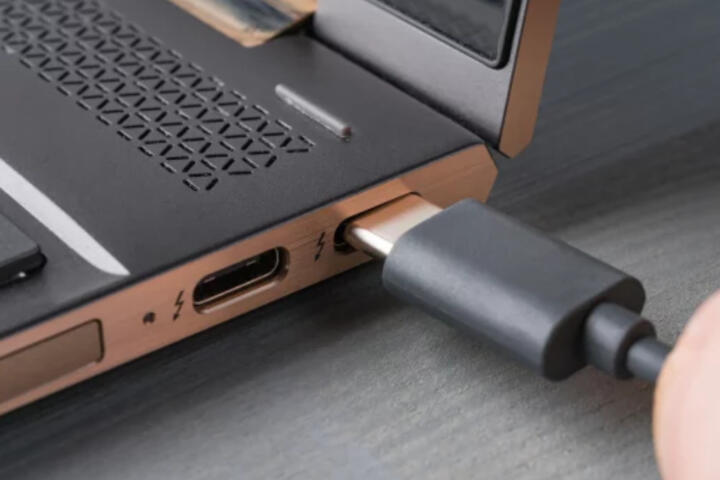
USB-C is a connector shape, not a charging guarantee. The charger, the laptop’s USB-C port controller, and the cable’s electrical limits decide whether power flows and how much. Most modern laptops that charge over USB-C use USB Power Delivery (USB PD), which negotiates voltage and current over the USB-C link.
On the charger label, you’ll usually see “Output” with wattage like 20W, 45W, 65W, or 100W. USB PD uses those ratings as a ceiling, then negotiates a specific voltage/current profile that the laptop accepts. For example, a 65W charger may deliver 20V at 3.25A, but the laptop might request a lower profile when the battery is near full or the load is light.
A practical example: a laptop that lists “USB-C charging up to 65W” can often run on a 45W charger for light tasks, but it may not sustain full performance under heavy CPU/GPU load. The laptop may still charge slowly, or it may hold the battery level while drawing from it. That behavior depends on the laptop’s power management, not just the charger wattage.
Side observation: many USB-C chargers show multiple outputs (for example, 5V/3A, 9V/3A, 15V/3A, 20V/3.25A). Those numbers are not “always on”; they’re the set of PD profiles the charger can offer.
Common Compatibility Pitfalls
People often assume that any USB-C cable and any USB-C charger will work at the advertised wattage. In practice, compatibility breaks in three places: PD negotiation, cable capability, and laptop port behavior.
First, PD negotiation depends on both devices supporting the same PD features. USB PD versions and profiles matter. A charger that supports only lower PD profiles can cap the laptop at a lower wattage. Conversely, a laptop may accept higher wattage only on specific ports or only when it detects a “charging-capable” path.
Second, cables vary. Many “charge-only” or older USB-C cables are limited to lower current or lack the internal wiring needed for higher-power PD. Even when the charger and laptop negotiate correctly, a cable with insufficient power handling can trigger throttling, errors, or a refusal to charge.
Third, some laptops treat USB-C power differently from their proprietary barrel jack. A laptop may accept USB-C charging but not support full power delivery for gaming workloads. That’s not a defect; it’s a design choice to reduce heat, manage battery health, or simplify internal power routing.
Side observation: I’ve seen cables labeled “100W” that still behave like 20–30W in real use, which usually points to cable quality or missing PD-capable wiring. The label alone doesn’t prove performance.
How Watts and PD Work
USB PD negotiates power in steps. The charger advertises what it can supply, and the laptop requests what it needs. The negotiated result might be 5V for accessories, 9V or 15V for moderate charging, or 20V and higher for laptop-class charging. The wattage you see on the charger is the maximum the charger can output under PD profiles.
To interpret ratings, look for two things: the maximum wattage and the voltage/current pair. If a charger lists “20V ⎓ 3.25A (65W),” that indicates a PD profile capable of 65W. If it lists only “5V ⎓ 3A (15W),” it likely won’t reach laptop charging levels.
PD also includes safety and control signals. When the laptop detects a mismatch or a cable that can’t handle the negotiated current, it may fall back to a lower profile. That’s why a laptop can show “charging” but not “charging fast,” or why battery percentage might drift downward under load.
Side observation: USB PD 3.0 and later introduced more flexible profiles, including higher voltages and improved negotiation behavior. Exact support varies by laptop model and charger firmware, so the safest approach is to match the laptop’s stated maximum USB-C charging wattage.
Solutions And Practical Checks
Match The Laptop Wattage
Start with the laptop’s own specification. Many manufacturers state a maximum USB-C charging wattage (for example, 45W, 65W, or 100W). Choose a charger that meets or exceeds that number if you want consistent performance under heavier workloads. If you only need basic charging and light use, a lower wattage charger can work, but expect slower charging and possible battery drain during demanding tasks.
Realistic outcome: with a 65W-rated laptop, a 45W charger often charges, but sustained heavy use may keep battery percentage flat or slowly decrease. The exact behavior depends on the laptop’s power draw and battery state of charge.
Verify PD Profiles And Output
Read the charger label for voltage/current pairs, not just the total wattage. A charger rated “65W” should show a PD output like 20V at 3.25A. If the label only shows 5V/3A or 9V/3A, it’s likely a USB-C “charging” adapter aimed at phones and tablets rather than laptop-class PD.
Tooling tip: if you have a USB-C power meter, it can show negotiated voltage and current in real time. I’ve used a USB-C inline meter around firmware versions that display PD negotiation data; it’s a quick way to confirm whether you’re actually getting 20V or only 9V.
Use A Cable Rated For Power
Pick a cable that is explicitly rated for the wattage class you need (often 60W, 100W, or “5A”). For laptop charging, aim for cables that support high-current USB-C charging. Avoid “thin” cables that feel like phone-only accessories, even if they have a USB-C plug.
Realistic outcome: a marginal cable can force the laptop to negotiate a lower profile, which shows up as lower voltage on a power meter and slower charging in practice.
Check Port Behavior And Modes
Some laptops have multiple USB-C ports with different capabilities. One port may support charging and video, while another may support data only. If the laptop has a “charging” icon near a port, use that port first. Also note that some docks and hubs can reduce charging performance if they don’t pass through PD correctly.
Side observation: a dock that works for display output might still cap charging at a lower wattage because it negotiates power for its own electronics. When you see unexpected limits, test with a direct wall charger before blaming the laptop.
Case Examples For Real Use
Student With A Travel Charger
A student has a laptop rated for up to 65W USB-C charging. They carry a compact 45W charger to save space. In class, the laptop runs on moderate brightness and web apps, and the battery percentage stays stable. During a longer coding session with background builds, the battery drains slowly because the laptop’s power draw exceeds what the 45W charger can supply while also charging the battery.
The fix is not “turn everything off,” it’s matching the charger to the workload. Switching to a 65W charger restores stable battery behavior under load.
Remote Worker Using A Power Bank
A remote worker tries to charge a laptop from a USB-C power bank rated 100W. The laptop charges at first, but later the power bank drops to a lower output profile and the laptop shows slow charging. The power bank’s internal battery management may throttle output when it detects high sustained draw or when its own state of charge drops.
The practical adjustment is to use a power bank that supports laptop PD profiles with sustained high wattage, then test with a power meter or observe charging speed over time. Some power banks also require a specific port selection to trigger the highest PD mode.
Compatibility Checklist And Table
| Parameter | What To Look For | Typical Laptop Target | What It Means If Missing |
|---|---|---|---|
| Laptop Max USB-C Wattage | Manufacturer spec for USB-C charging | Match or exceed (e.g., 65W) | Lower wattage may charge slowly or not sustain load |
| Charger PD Output | Voltage/current pairs (e.g., 20V ⎓ 3.25A) | A profile that reaches the laptop’s ceiling | Charger may cap at phone/tablet power |
| Cable Power Rating | Explicit high-power rating (often 100W/5A) | Cable supports the negotiated current | Laptop falls back to lower voltage/current |
| Correct Port | Port labeled for charging or PD | Use the charging-capable USB-C port | No charge or reduced wattage |
Step-by-step checklist: (1) Confirm the laptop’s stated maximum USB-C charging wattage. (2) Check the charger label for a matching PD voltage/current profile. (3) Use a high-power USB-C cable rated for the wattage class. (4) Plug directly into the wall charger first, then test docks/hubs/power banks after you see stable charging.
Common Mistakes To Avoid
Buying a charger by wattage alone causes disappointment. A “100W” charger can still fail if it lacks the PD profiles the laptop requests, or if the laptop expects a specific voltage profile. The label’s voltage/current pairs reveal more than the total wattage.
Using a cable that looks compatible but isn’t rated for high power is another frequent issue. Cable thickness and connector shape do not guarantee current handling. When charging speed drops or the laptop repeatedly connects/disconnects, the cable is a prime suspect.
Relying on a dock without testing direct charging leads to misdiagnosis. Many docks pass video and data but cap charging power. Testing with the wall charger first narrows the problem to the dock or to the power path.
Ignoring port differences also wastes time. Some laptops restrict charging to one USB-C port; others support charging on both but at different wattage ceilings. The port label or manual usually states this, and the behavior can be inconsistent across models.
FAQ
How Many Watts Does My Laptop Need?
Use the laptop manufacturer’s USB-C charging specification. If the spec says 65W, a 65W charger typically reaches the intended charging profile; a lower wattage charger may still charge but can slow down or fail to sustain heavy workloads.
Does Any USB-C Charger Work With PD?
USB-C chargers must support USB Power Delivery and the relevant PD profiles. A charger that only provides fixed 5V/9V charging for phones usually won’t negotiate the higher voltages laptop charging requires.
Why Does My Laptop Charge Slowly On A Higher-Watt Charger?
Slow charging often indicates the negotiated PD profile is lower than expected, which can happen due to cable limits, a non-charging USB-C port, or a dock/power bank that caps sustained output.
Can I Charge A Laptop From A Power Bank?
Yes when the power bank supports USB-C PD with laptop-class wattage and sustained output. Some power banks throttle under high draw, so charging may slow after the battery state changes.
Will A 100W Cable Always Deliver 100W?
No. The cable rating is a capability ceiling, while the actual delivered power depends on PD negotiation between charger and laptop and on the laptop’s power management under load.
Author's Insight
USB-C charging problems usually trace back to negotiation and power-path limits rather than “bad luck.” Reading the charger’s voltage/current pairs and matching the laptop’s stated USB-C wattage gives a reliable starting point. Cable quality matters because PD can fall back when the cable can’t handle the negotiated current.
When results look wrong, a USB-C power meter is a practical diagnostic because it reveals the negotiated voltage and current instead of guessing from battery percentage alone. If you see lower-than-expected voltage, the cause is often the charger profile, the cable, or the port/dock power path.
One small frustration: many product listings omit PD profile details, so the safest approach is to cross-check the charger label and the laptop manual before buying.
Key Takeaways
- USB-C charging depends on USB PD negotiation, not just the connector shape.
- Match the charger to the laptop’s stated maximum USB-C charging wattage for stable performance.
- Verify PD output voltage/current pairs on the charger label, not only the wattage number.
- Use a high-power USB-C cable rated for the wattage class to avoid silent power fallback.
- Test direct wall charging first, then evaluate docks and power banks after you confirm baseline behavior.