First Laptop Basics
A first laptop is a tool you live with for years, so you want predictable performance and a screen you can tolerate for long sessions. A practical way to shop is to match specs to your tasks: web browsing and documents, school apps, video calls, light photo editing, or coding. For measurable grounding, many modern laptops use SSD storage, and SSDs typically deliver far faster boot and app launch times than HDD drives; the exact gap depends on the model and interface. Another measurable anchor: Windows 11 requires a 64-bit processor and at least 4 GB RAM, while macOS versions have their own minimums, so “it turns on” does not equal “it runs comfortably.”
Start with your budget.
Decide what you will do on day 1. If you plan to run Microsoft 365 or Google Docs, you mainly need a stable browser and enough RAM to keep tabs from turning into a slideshow. If you plan to join video calls, you need a camera and microphone that work in your conferencing app, plus Wi‑Fi that stays connected. If you plan to learn programming, you need enough RAM for your editor and a local environment, or you will rely on cloud tools. I’m using “enough” in a practical sense: you should be able to keep multiple browser tabs open without constant stutter, and you should be able to switch between apps without long waits.
Common Beginner Mistakes
People often buy based on a single headline number, then discover the bottleneck later. A laptop with a fast CPU can still feel slow if it has 4 GB RAM and you open many tabs, because the system swaps memory to disk and that creates delays. A laptop with a large storage number can still be frustrating if it uses a small SSD partition or if the drive is nearly full after updates. Another mistake is ignoring the keyboard and trackpad for daily use; a cheap keyboard layout or a trackpad with inconsistent gestures can slow you down more than a minor CPU difference.
Skip the “minimum” specs.
Screen and battery mistakes also show up quickly. If you choose a dim panel, you may raise brightness and drain the battery faster, which encourages you to keep the charger nearby. If you choose a laptop with weak Wi‑Fi, video calls drop or audio stutters, and the cause is often the wireless module and antenna design rather than your internet speed. For health-related comfort, prolonged eye strain can be influenced by text size, contrast, and blink rate; the mechanism is simple: when people focus intensely on small text, blink frequency often drops, and dryness can worsen. That does not mean every discomfort is “screen related,” but it does mean your laptop choice can affect your baseline comfort.
What To Buy For Comfort
Pick The Right CPU Class
Choose a CPU class that matches your tasks rather than chasing the highest number. For office work, web apps, and school documents, modern midrange chips from major vendors typically feel fine; for heavier tasks like local video editing, you need more headroom. In practice, you can look at benchmark summaries from reputable review sites, then cross-check with your expected workload. If you see a laptop advertised as “fast,” check whether it maintains performance under sustained load; throttling can turn a short benchmark win into a long-session slowdown.
Match CPU to workload.
Choose RAM With Margin
RAM is the most common hidden bottleneck for beginners. A practical baseline for a first laptop is 8 GB RAM, because it supports multiple browser tabs plus a document editor without constant swapping. If you expect heavier multitasking, such as running a virtual machine, large spreadsheets, or multiple apps at once, 16 GB RAM reduces stutter. The mechanism is memory pressure: when RAM fills, the system uses the SSD as swap, and SSD swap is slower than RAM, so responsiveness drops.
More RAM reduces swapping.
Get NVMe SSD Storage
Prefer an NVMe SSD over older SATA SSDs when the price difference is small, because NVMe generally improves random access and app launch behavior. Aim for at least 256 GB if you only store documents and a few apps, but 512 GB is easier if you download course files, keep offline media, or install multiple tools. Watch for “storage” that is mostly taken by preinstalled software; some laptops ship with large recovery partitions. If you plan to store photos or videos locally, plan for growth rather than buying the smallest drive.
SSD speed affects patience.
Screen Specs For Less Strain
Look for a resolution that keeps text crisp at your typical viewing distance, and avoid very dim panels. A 1920×1080 display on a 13–14 inch laptop often reads clearly without scaling tricks, while lower resolutions can force larger scaling and blur. Check brightness in nits if the review provides it; many comfortable indoor displays land around 250–400 nits, but glare and room lighting matter more than the number alone. If you work near windows, matte or anti-glare coatings can reduce reflections, which helps you keep brightness lower.
Glare changes your comfort.
Ports And Charging Reality
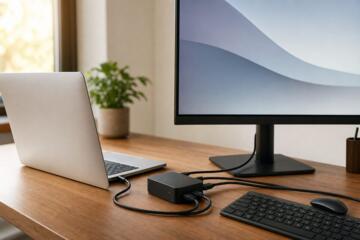
Count the ports you need today and the ones you might need in 12 months. If you use a USB headset, you need a USB-A or USB-C port that works reliably with your device; if you use an external monitor, you need the right video output over USB-C or HDMI. For charging, check whether the laptop charges over USB-C Power Delivery, because that affects whether you can use one charger for travel. In practice, a single 65–100 W USB-C charger can cover many laptops, but not all models accept the same wattage, so verify the laptop’s charging spec.
Case Examples For Real Use
Scenario 1: A student buys a 14-inch laptop with 4 GB RAM because the CPU looks fast. After a week, the laptop slows whenever they keep 20+ browser tabs open and run a PDF viewer, and the lag appears during tab switching. The cause is memory pressure and swap to disk; the fix is upgrading to 8 GB or 16 GB RAM if the model supports it, or reducing tab load using browser profiles and extensions that pause inactive tabs. They also adjust display scaling to keep text readable without excessive zoom, which reduces eye strain during long reading sessions.
Scenario 2: A beginner chooses a laptop with a glossy display to save money. In a bright room, reflections force them to raise brightness, and the battery drains faster than expected. During video calls, they notice audio dropouts that correlate with weak Wi‑Fi signal at their desk, not with their internet plan. The fix is moving the laptop closer to the router, testing a different Wi‑Fi band if available, and using a wired headset for stable audio; they also consider a matte display model for future purchases.
Comparison Checklist
| Category | Beginner-Friendly Target | What To Verify In Specs | What To Watch For |
|---|---|---|---|
| RAM | 8 GB minimum, 16 GB if multitasking | RAM type and whether it is upgradeable | 4 GB leads to frequent swapping with many tabs |
| Storage | 256 GB minimum, 512 GB easier | NVMe SSD vs SATA SSD | Low free space slows updates and app installs |
| Display | 1080p on 13–14 inch, anti-glare if possible | Resolution, brightness (nits), panel type | Glossy screens increase glare and brightness needs |
| Ports | USB-C charging + video out | USB-C Power Delivery wattage support | Missing video output forces adapters |
| Battery | Lasts a class session | Review test method and brightness assumptions | Video calls reduce runtime sharply |
Use this checklist before checkout.
- Write your top 5 tasks and list which ones run at the same time.
- Set a RAM target based on multitasking, not on the CPU model name.
- Confirm SSD type and free space after OS installation.
- Check display resolution and glare risk in your room lighting.
- Verify ports for your headset, charger, and any monitor you plan to use.
- Read one review that mentions sustained performance and Wi‑Fi behavior.
Common Mistakes To Avoid
Buying a laptop with 4 GB RAM because it “meets the minimum” leads to a frustrating cycle: you close apps, reopen them, and still feel delays. The underlying issue is memory pressure, which triggers disk swapping and increases wait time. Another mistake is ignoring whether the laptop’s RAM is soldered; if it is not upgradeable, you cannot fix a poor RAM choice later. A third mistake is assuming storage capacity equals speed; a nearly full SSD slows updates and can cause app installs to fail mid-way.
Don’t trust one spec alone.
Beginners also underestimate how browser settings affect performance. Extensions that run on every page, aggressive tab preloading, and autoplay video can consume CPU and RAM. If you notice lag after installing a few learning tools, test with extensions disabled and compare results; this is a fast way to identify the cause. I once saw a laptop feel “broken” until the user removed a heavy PDF extension that was scanning every document, which, frankly, most people skip when troubleshooting.
Test after you install tools.
FAQ
How Much RAM Do I Need?
For most beginner tasks, 8 GB RAM is a practical minimum, and 16 GB reduces stutter when you keep many browser tabs and apps open. If you plan to run a virtual machine or heavy spreadsheets, 16 GB is a safer baseline.
Is 256 GB Storage Enough?
256 GB works for documents and a few apps, but it fills quickly with OS updates, offline course files, and media. 512 GB reduces the need to constantly manage free space.
What Screen Resolution Should I Choose?
On a 13–14 inch laptop, 1920×1080 usually keeps text readable without extreme scaling. Lower resolutions often force scaling that can look softer and strain your eyes during long reading.
Do I Need USB-C Charging?
USB-C charging matters if you want one charger for travel or a desk setup. Verify the laptop supports USB-C Power Delivery and check the wattage range it accepts.
How Can I Check Wi‑Fi Performance?
Read a review that tests Wi‑Fi range and stability, then test at your desk with your conferencing app. If calls stutter, try a different Wi‑Fi band, move closer to the router, or use Ethernet if available.
Author's Insight
A beginner laptop purchase fails most often at the “system behavior” layer, not at the headline spec layer. RAM limits show up as swapping, storage limits show up as slow updates, and display choices show up as glare and text discomfort. When I review spec lists, I look for upgrade paths, port coverage, and whether sustained performance is discussed, because those factors predict day-to-day frustration. A small incidental detail like “BIOS version 1.2.3” in a changelog can hint at how actively a model line is maintained, though it does not guarantee anything about your specific unit.
Key Takeaways
Choose a laptop that matches your tasks with enough RAM, a fast SSD, and a readable display. Plan for your ports and charging needs so you do not depend on fragile adapters. Test comfort and performance after you install your real tools, not just after the first boot.
Next steps: shortlist 2–3 models, compare RAM/SSD/display/ports, then run a 60–90 minute trial with your browser and one video call. If you get persistent eye pain, headaches, or blurred vision, stop prolonged use and seek medical advice from an optometrist or clinician. If the laptop feels slow despite reasonable specs, troubleshoot browser extensions and background apps before blaming the hardware.