Home Office Setup Basics
A first home office is a small system: a comfortable workstation, reliable power and internet, and tools that reduce friction when you work for hours. If you write reports, attend calls, or handle spreadsheets, your setup needs stable audio, a readable display, and a keyboard that doesn’t punish your wrists. If you study, you still benefit from the same basics because long sessions amplify small annoyances like glare, slow logins, or a chair that forces you to hunch.
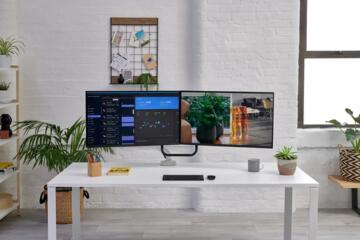
Start with the physical layout. Place your monitor so the top third sits around eye level, then position the keyboard so your elbows rest near a 90-degree angle. A simple desk lamp with a dimmable LED can cut screen glare without turning your room into a spotlight. I’ve seen people buy expensive gear while ignoring the chair; after a week, they end up standing or shifting constantly, and the “productivity” purchase becomes a return.
Next, cover the work inputs. A wired headset often beats a cheap Bluetooth headset for call clarity because it reduces pairing issues and audio dropouts. For typing and note-taking, a full-size keyboard with tactile feedback can reduce errors compared with laptop keys, especially if you write long emails. If you use a laptop, a monitor stand or laptop riser helps you avoid neck strain, and a separate keyboard keeps your posture consistent.
Main Problems And Pain Points
People often buy gear in the wrong order. They start with a high-end chair or a large monitor, then discover their laptop’s ports limit external displays, or their Wi‑Fi router sits in a dead zone. The result is a setup that looks good but forces constant cable swapping, which turns into daily frustration.
Another frequent mistake is treating “internet speed” as the only metric. Video calls depend on latency and packet loss, not just download speed. If your connection is unstable, you’ll see symptoms like audio stuttering, frozen video tiles, or delayed screen sharing even when a speed test looks fine. A router with decent Wi‑Fi coverage, plus a wired option when possible, matters more than chasing a higher Mbps number.
Audio and lighting get underestimated. A microphone that sounds fine in a quiet room can pick up keyboard clicks and fan noise once you close the door. Screen glare can make you squint, which leads to headaches and more breaks. People also forget that many home offices share space with household noise, so you may need a headset, a mic with noise reduction, or a simple “work hours” rule for the room.
Solutions And Advice
Pick A Workstation First
Buy the physical foundation before the “nice-to-have” gadgets. A chair with adjustable seat height and lumbar support reduces the need to compensate with posture. If you can, measure your desk height and aim for a keyboard position that keeps elbows near 90 degrees. For monitors, a simple VESA-compatible arm can move the screen closer to you and reduce neck rotation; many arms support 13–27 inch displays, but you must check weight limits.
For lighting, choose a lamp with a warm-to-neutral color temperature range (often around 2700–4000K) and a diffuser if you see hotspots on the screen. If you use a laptop, a riser that lifts the screen to eye level can be cheaper than a new monitor, and it reduces the “chin forward” posture that shows up after long reading sessions. I once watched a friend buy a second monitor before adjusting their chair height; the second screen didn’t fix the fatigue because the chair still forced a slouch.
Choose Reliable Audio And Input
For calls, prioritize a headset with a microphone that sits close to your mouth and a design that blocks room noise. Wired headsets often avoid Bluetooth pairing quirks, and a USB headset can work with most laptops without extra drivers. If you record voice notes or do meetings with transcription, test audio in the exact room where you work; background noise changes when you close windows and turn on the fan.
For typing, consider a keyboard that matches your comfort. If you type for 2–4 hours daily, a keyboard with comfortable key travel can reduce finger fatigue. A mouse with adjustable DPI can help if you switch between spreadsheets and design tools, but you can also start with a basic ergonomic mouse and upgrade later. Keep the cable management simple; a desk that tangles every week becomes a daily annoyance.
Plan Display And Connectivity
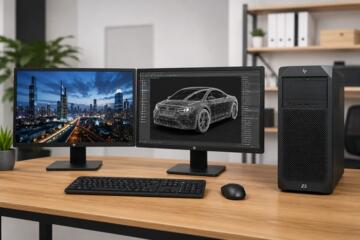
For displays, match resolution and scaling to your eyesight and your laptop’s graphics limits. A 24-inch monitor at 1080p can look fine for spreadsheets, while 1440p can reduce the need for aggressive scaling. If you use text-heavy work, higher pixel density can help, but it also depends on your operating system’s scaling settings and how your apps render fonts.
For connectivity, check your laptop ports before buying a docking station. USB‑C docks vary in whether they support video output and power delivery; some require a specific charger wattage. If you need stable video calls, consider an Ethernet connection from the router to your desk. If wiring isn’t possible, a mesh Wi‑Fi system can improve coverage, but you should place nodes to avoid thick walls and metal shelving that weaken signal paths.
Case Examples For Real Setups
Scenario 1: Laptop-Only Caller — A remote worker uses a 13-inch laptop for meetings and a spreadsheet workflow. They buy a monitor riser, a 24-inch external display, and a wired USB headset. After setup, they notice the laptop’s Wi‑Fi drops during peak hours, so they add an Ethernet cable to the router. Their biggest improvement comes from stable audio and a screen positioned at eye level, not from upgrading the laptop.
Scenario 2: Student With Long Reading Sessions — A student studies for 3–4 hours daily and writes essays. They start with a comfortable chair, a desk lamp with adjustable brightness, and a keyboard they can type on for long drafts. They choose a monitor with good text clarity and set OS scaling so fonts remain readable. They also set up an automatic backup for documents to a cloud folder and a local external drive, because they once lost a draft after a storage cleanup.
Comparison Checklist
| Purchase Category | What To Look For | Common Trade-Off | Decision Tip |
|---|---|---|---|
| Chair | Adjustable height, lumbar support, seat depth | More adjustments can mean more setup time | Test for 30–60 minutes if possible; posture beats brand |
| Monitor | Resolution, scaling support, VESA compatibility | Higher resolution can require better scaling settings | Check laptop ports and cable type before buying |
| Headset | Mic placement, comfort, wired vs wireless stability | Wireless adds pairing and battery variables | Record a 20-second test and listen back |
| Networking | Wi‑Fi coverage, Ethernet option, router placement | Mesh systems cost more and need careful placement | If calls fail, test with Ethernet first |
| Security | MFA, password manager, OS updates | Extra login steps can annoy you at first | Turn on MFA for email before anything else |
| Backups | Versioning, off-device copy, restore test | Cloud sync can hide what folders are included | Do a restore test once; it reveals gaps fast |
Common Mistakes To Avoid
Buying a docking station without checking video support is a common failure mode. Some docks charge the laptop but do not pass through the right display signal, which leads to a “works on one monitor” situation. Verify the dock’s supported video standards and confirm your laptop’s USB‑C video capability.
Another mistake is assuming a speed test guarantees call quality. If your router is overloaded or your Wi‑Fi signal fluctuates, you can see packet loss and jitter that a simple test misses. A practical check involves running a video call while watching network stats in your conferencing app, then repeating the call with Ethernet if possible.
People also underestimate cable and power planning. A monitor arm can change cable routing, and a desk that moves can strain connectors. Use cable ties or a simple cable tray so you don’t yank the HDMI or USB cable when you adjust the monitor position.
On the security side, skipping multi-factor authentication for email creates a weak link. Even if your work accounts have strong protections, a compromised email account can reset passwords across services. If you’re using a password manager, confirm it can generate and store new credentials and that you can recover access if you lose a device.
Finally, avoid “set and forget” backups. Sync tools sometimes exclude certain folders, and external drives can fail silently. Do a restore test for one file every few months; I’ve seen people discover they backed up the wrong folder after a drive crash in 2024.
FAQ
What Should I Buy First?
Start with a comfortable chair, a stable desk height, and a reliable input method (keyboard and mouse). Add a monitor or riser next, then cover audio for calls and a backup plan for files.
Do I Need A Monitor If I Have A Laptop?
A separate monitor reduces eye strain and improves multitasking for spreadsheets, documents, and reference material. If you use only one app at a time, a riser plus laptop keyboard can be enough.
How Can I Improve Call Quality At Home?
Use a wired headset for consistent audio, place the router away from thick walls, and test Ethernet if Wi‑Fi drops. Record a short test and listen for echo and keyboard noise.
What Backup Setup Works For Most People?
Use a cloud sync or scheduled backup plus an off-device copy, then do a restore test. Confirm version history so you can recover older versions after accidental edits.
Which Security Steps Matter Most?
Enable multi-factor authentication for email, use a password manager, and keep your operating system and browser updated. Add device encryption if your system supports it and you store sensitive documents locally.
Author's Insight
A home office purchase list should follow the failure points you can predict: discomfort from posture, call problems from audio and network instability, and data loss from missing backups. The most reliable setups start with ergonomics and stable connectivity, then add peripherals that reduce friction during daily tasks. Security choices should focus on account recovery and multi-factor authentication for email, because many password resets begin there.
When you evaluate products, check compatibility details like laptop ports, monitor resolution scaling behavior, and whether a dock supports the video standard you need. I can’t verify personal circumstances for readers, but a careful checklist and one restore test usually reveal the biggest gaps faster than buying more hardware.
Key Takeaways
Buy ergonomics and stable inputs first, then add display and networking that match your laptop’s ports and your call needs. Treat internet quality as latency and reliability, not just download speed. Use a headset test in your actual room, and plan backups that include versioning plus an off-device copy.
Security should start with multi-factor authentication for email and a password manager, then continue with updates and device encryption. If you feel tempted to buy a lot at once, set up the basics, test for a week, and only then fill the gaps—your daily workflow will show what you truly need.